



Quick Links
Add Gallery Images
Manage Gallery
Delete Images
Exclude Images
“Add / Gallery Images”
It is presumed that before adding new images to the Featured Inventory slideshow you have already created the post for the inventory item. The Featured Inventory slideshow has its images stored in a special gallery, which you find by selecting Gallery from the “Dashboard” area of the wp-admin screen:
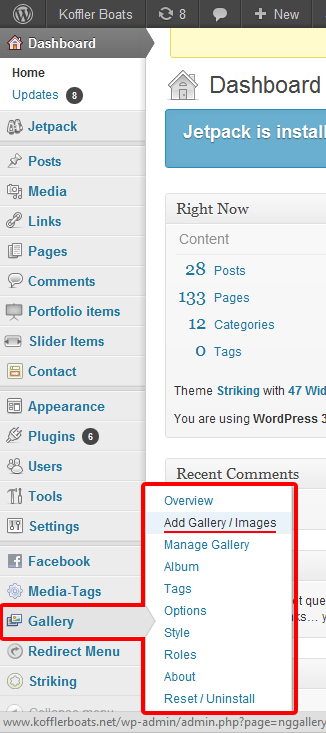
Select “Add / Gallery Images” to add new images.
Now we upload the files, see image below and instructions following:
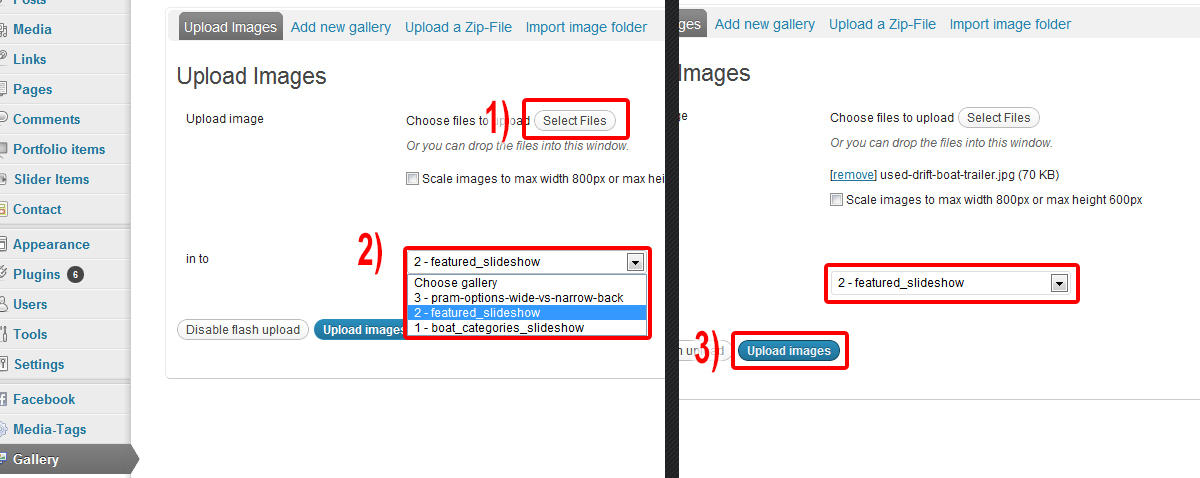
Step 0: The images you are going to upload have to be resized in photoshop so that they are 275px wide by 225px tall (275×225 pixels).
Step 1: Upload the files. Initially the drag-and-drop feature was working fine for me, but then it started to give me errors (at step 3) so I had to “Disable Flash Upload” and rely solely on the “select files” button. You can press the “select files” button multiple times to generate a list of pictures before moving on to step 2.
Step 2: Choose the “2 – featured_slideshow” option in the drop-down list. You can see that by making other galleries there can be customized slideshows elsewhere on the website if you wanted.
Step 3: Hit Upload Images! You should see an orange data bar processing your files like so:
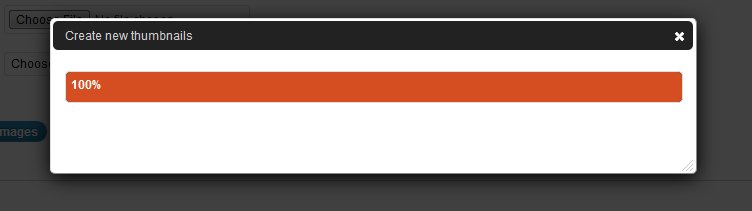
And then at the top of the page it will say how many images were successfully added:

Sometimes I get an error during this upload process, and it has been solved by double checking that the flash upload is disabled, and then redoing step 3.
Manage Gallery
Next we need to manage the gallery settings:
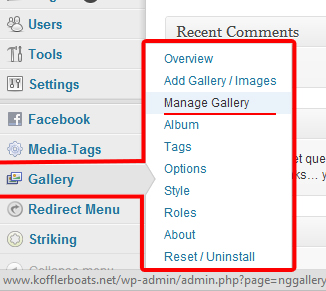
Then choose the featured_slideshow gallery:
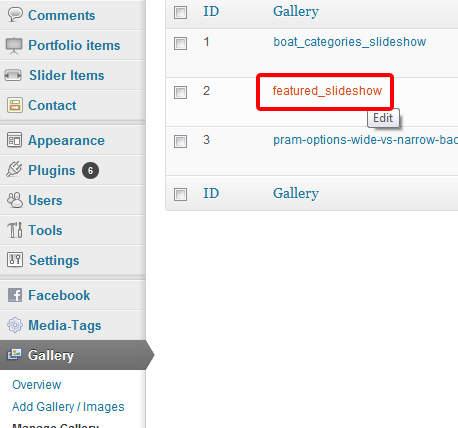
Find the new image – they’re usually added to the bottom of the list:
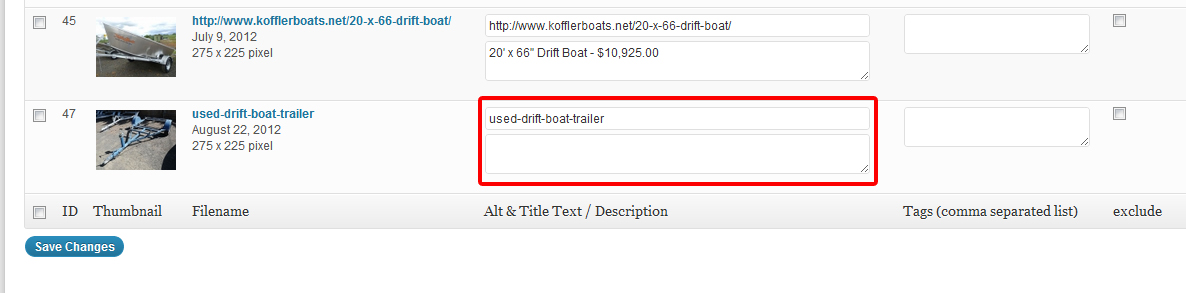
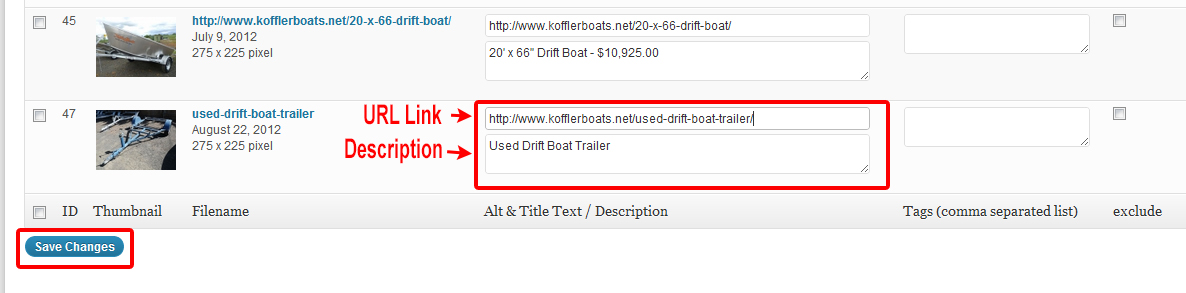
You can see that we have 2 fields that need to be updated. The top field is the “Alt & Title Text” field, which we use to link to the Post you have already created (we put the URL for the post you created here, that way when people click on the slideshow image they are redirected to the post). The bottom field is the “Description” field, which is the text displayed under the image on the slideshow.
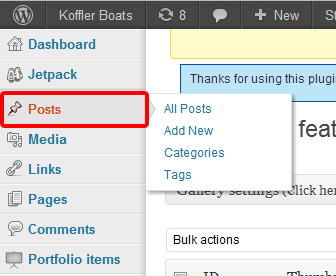
In the top field enter the URL to the Post related to this image. If you need to find the URL, open a new browser window, or tab, and follow these steps: from the left menubar on the “Dashbaord” admin page select “Posts” as shown:
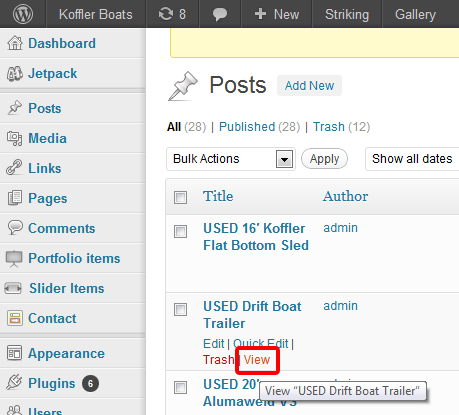
Next, find the post you’re working with and click “view” as shown:
This will load your post and you can grab the URL from the browser window like this:
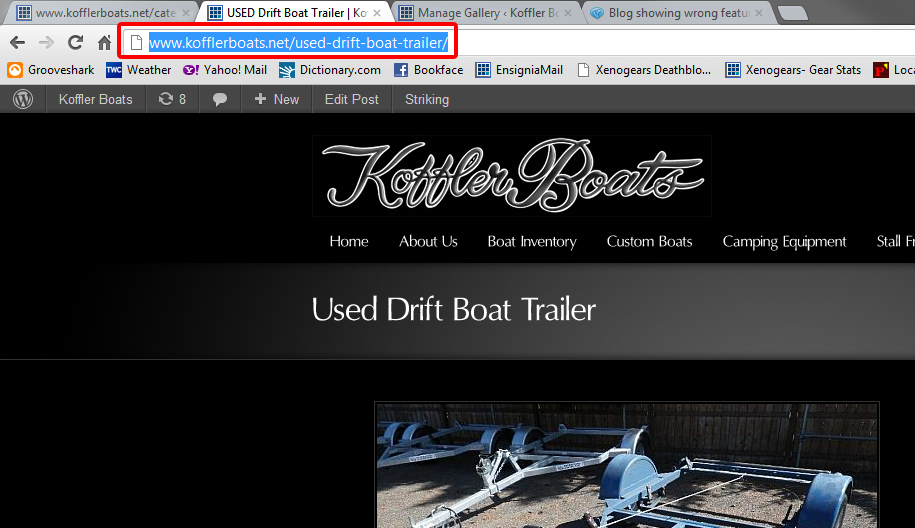
Now go back to the Manage Gallery page and update the URL Link field (*Make sure to include the “http://” part) and the Description field (*If you make your description too long it will either not show the extra info, or it will cause the description area to stretch and may distort the image size – we can force it to not show the extra words, I just cannot remember what it does) and then press “save changes” like so:
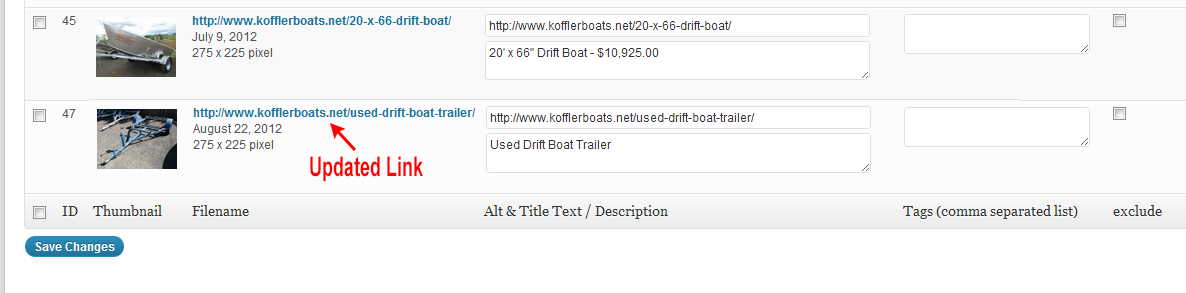
You’ll see the fields have been updated when the filename is changed to the URL link, like this:
And that’s it, your new image(s) is(are) in the slideshow.
Delete Images
Deleting images is easy to do and there are 2 ways to accomplish this. From the Manage Gallery screen you would again choose choose the featured_slideshow gallery:
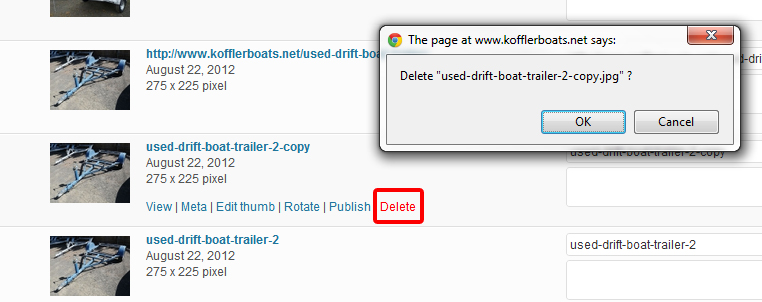
As you now know, this loads all the slideshow images. If you mouseover one of the images’ containers you’ll see a menu appear under and to the right of the image thumbnail. On the far right of the menu is “delete” and pressing this will prompt an, “are you sure?” window like so:
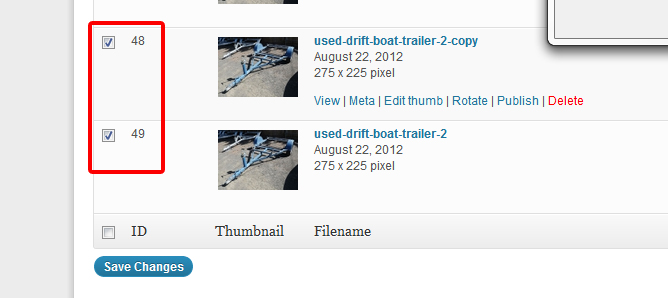
That method is good for deleting single items. This second method is good for deleting batches of images. To the left of the image thumbnails there are little checkboxes you can select:
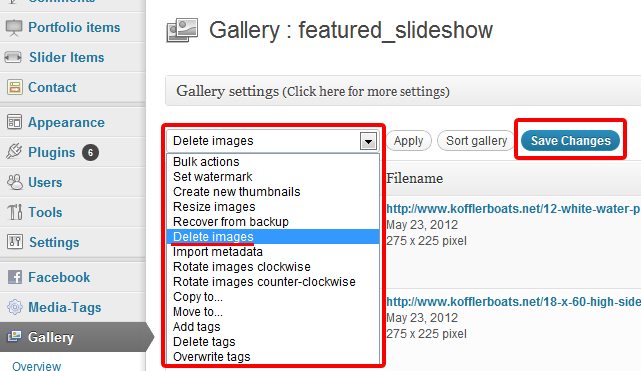
Next scroll back to the top of the page and there is a drop-down select box that’s titled “Bulk actions.” From this choose “Delete Images” and then press “Save Changes” as seen here:
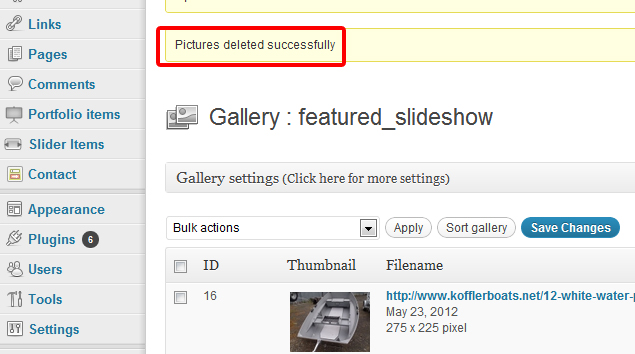
And that will also delete your images:
Exclude (hide) Images from Slideshow
Jump to Top
Lastly, you can keep your images, but not show them. To do this you would select the “Exclude” checkbox on the far right of the images’ container, and then press the “Save Changesa” button:
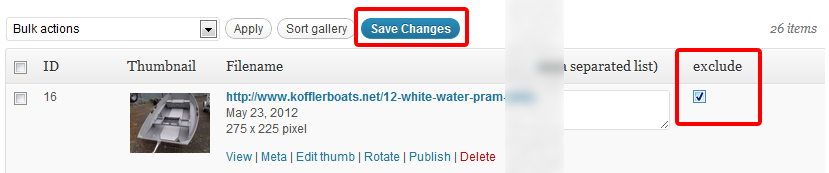
This way you can save your slideshow image for use later.
If you need more help, give us a call! Jump to Top